
Table of Contents
What Is ArkBeat?
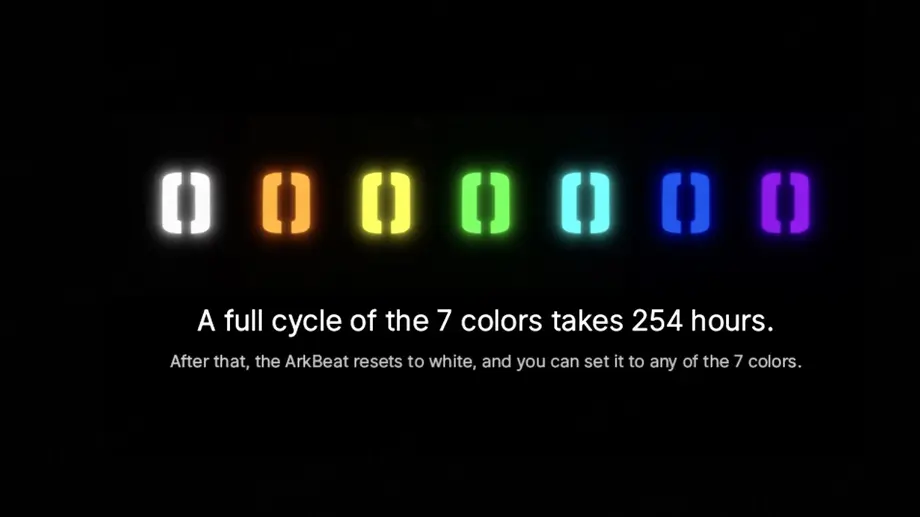
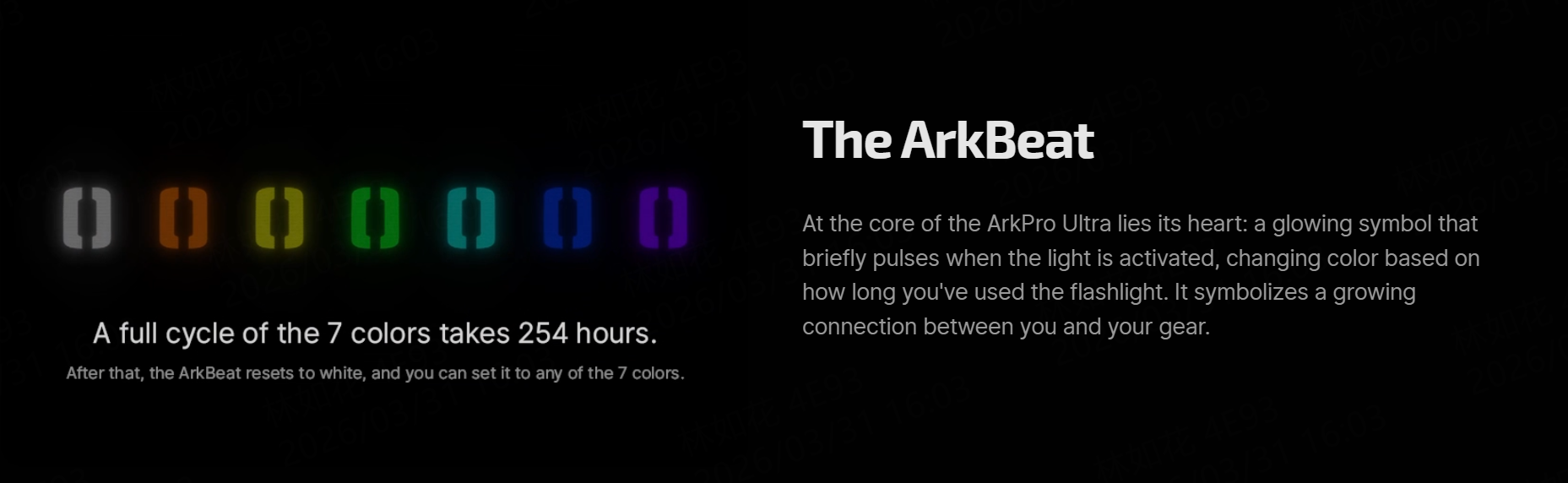
ArkBeat is an intelligent LED indicator that changes color based on the cumulative runtime of your ArkPro Ultra. Instead of checking your watch or phone, you just glance at the light’s side or center button (depending on configuration) and instantly know how many hours have passed.
The system follows a clear, progressive sequence of seven colors, each representing a specific duration of continuous or accumulated use. Here’s the exact mapping:
| ArkBeat Color | White | Orange | Yellow | Green | Cyan | Blue | Purple |
|---|---|---|---|---|---|---|---|
| Runtime | 2 h | 4 h | 8 h | 16 h | 32 h | 64 h | 128 h |
Once you complete a full cycle (white through purple), the color resets back to white. But here’s the clever part: after a reset, you aren’t locked into the automatic sequence anymore. You can choose any of the seven colors as your personal preference, effectively turning ArkBeat into both a timer and a customization tool.
Why a Color-Coded Runtime Indicator Matters
You might wonder: "Why not just put a small digital screen on the light?" The answer is simplicity and reliability. A digital display adds cost, complexity, and a potential point of failure in harsh environments. Colors, on the other hand, are instantly recognizable, work in low light, and consume negligible power.
The 128‑hour purple milestone is particularly impressive. That’s over five days of continuous low‑level illumination. If you see purple, you know you’ve been relying on your ArkPro Ultra for a very long time—probably time to recharge or swap batteries.
How to Set Your Preferred ArkBeat Color
While the automatic runtime sequence is helpful, ArkBeat also gives you full control. You can choose to lock the indicator to a single color that suits your mood, task, or team coordination (e.g., all crew members use green for easy identification).
Here’s the simple procedure:
- Turn on Pure Flood mode – This is the wide, even beam setting on the ArkPro Ultra. Make sure the light is actively on in this mode.
-
Each double‑press cycles through the seven colors in order: White → Orange → Yellow → Green → Cyan → Blue → Purple → (back to White).
-
Repeat until you reach your desired color – Stop when the indicator shows your favorite shade.
That’s it. The light will remember your selection, and the ArkBeat will now stay that color regardless of runtime. If you ever want to return to the automatic time‑based mode, simply perform a reset (see below).
This feature is great for personalization. Maybe you want a calming cyan for your desk lamp setup, or a tactical red‑equivalent (purple is the closest) for preserving night vision. The choice is yours.

Enabling and Disabling ArkBeat
By default, ArkBeat might be active on your ArkPro Ultra, but you can also turn it off completely if you prefer no indicator light (to save every last drop of power or to avoid any light emission in stealth situations).
To enable or disable ArkBeat:
- Start with the device off (light not emitting any beam).
- Press and hold the side button – keep holding it.
- While still holding the side button, double‑press the center button.
- Release the side button.
That toggle switches ArkBeat on or off. There’s no need to connect to an app or remember complicated button sequences. The physical controls are designed for gloves‑on, wet‑hands, or no‑light conditions.
When ArkBeat is disabled, the indicator remains dark. No colors, no runtime tracking. This can extend battery life by a tiny fraction, though the LED used for ArkBeat is extremely efficient.
Tips & Best Practices
- Use the automatic mode for battery management – If you’re on a multi‑day trip, let ArkBeat run its natural course. When you see yellow (8h) or green (16h), you know you’ve used a significant portion of your battery if running on high mode. Adjust your brightness or swap power sources accordingly.
- Reset strategically – Remember that after a full white‑to‑purple cycle, ArkBeat automatically resets to white. That’s a perfect time to swap in fresh batteries and mentally start a new “shift.”
- Combine with Pure Flood for customization – The color selection only works when Pure Flood is on. If you’re in spot mode or any other beam pattern, double‑pressing the side button won’t change ArkBeat. Don’t panic—just switch to Pure Flood first.
- Teach your team – If you work in a group (e.g., cave rescue or film crew), standardize on a specific color so everyone can quickly identify each other’s lights. For instance, “All spotter lights set to cyan” makes coordination instant.
- Purple means "check your gear" – Reaching the 128‑hour purple milestone is a gentle reminder that your ArkPro Ultra has been running for a very long time. Even if the battery still has juice, it’s wise to inspect the light, clean the lens, and prepare a backup.
Final Thoughts
The ArkBeat feature on ArkPro Ultra is a brilliant example of thoughtful design. It takes something as mundane as a runtime indicator and transforms it into an intuitive, colorful, and customizable tool. Whether you’re a professional who needs to track shift hours, an adventurer who wants to avoid getting caught in the dark, or just someone who appreciates clever engineering, ArkBeat delivers.
No apps. No Bluetooth. No confusing menus. Just a small LED that speaks the universal language of color.
So next time you power on your ArkPro Ultra, take a moment to notice the glow. Is it white, orange, or maybe a deep purple? That little light is telling you a story—how long you’ve been going, how much further you can push, and when it’s time to rest or recharge.
Have you tried customizing your ArkBeat color yet? Share your favorite shade and how you use it in the comments below. And if you haven’t enabled this feature, follow the steps above—it takes less than five seconds to unlock a whole new level of awareness.
Stay bright, stay aware, and let ArkBeat guide your way — The ArkPro Team